Migrating from Power BI Premium to Microsoft Fabric is a major step for organizations seeking enhanced analytics, scalability, and new features. This guide provides a comprehensive checklist, best practices, and mitigation strategies to ensure a smooth and successful migration.
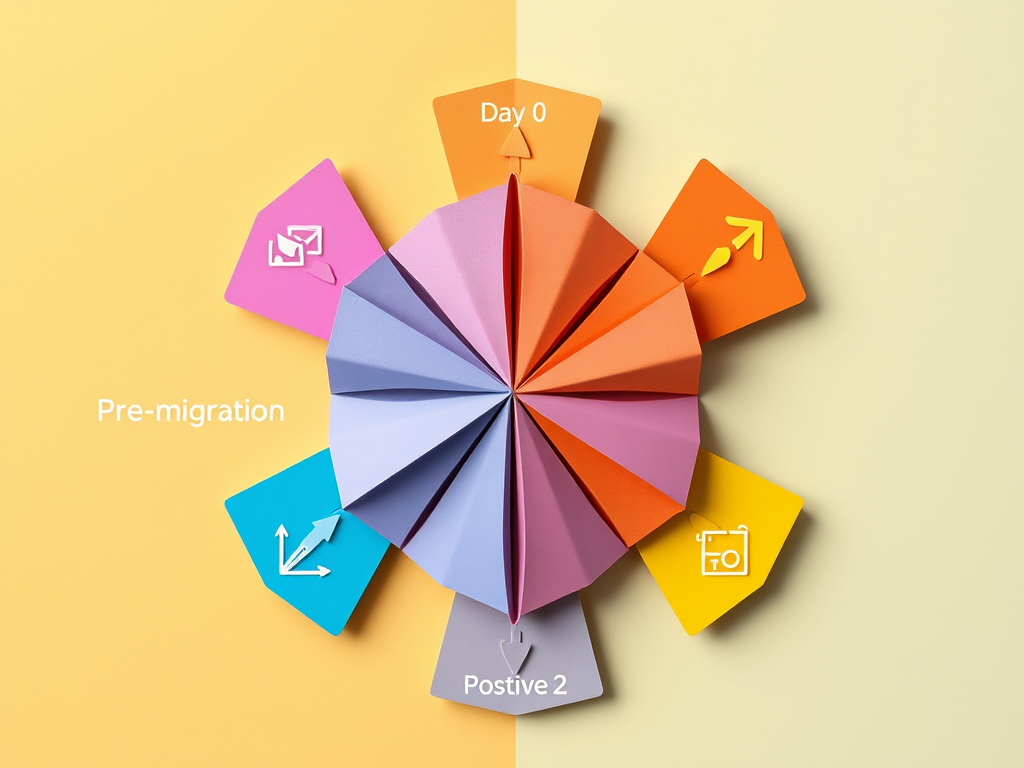
Migration Timeline: What to Expect
Pre-Migration (Months -3 to 0): Planning & Setup
- Conduct a thorough inventory of all assets.
- Decide on Fabric capacity sizing and arrange Azure subscription if needed.
- Assemble a dedicated migration team.
- Establish a detailed schedule for all preparatory steps.
Day 0: Premium Renewal Lapses
- Purchase or activate required Fabric capacity (F-SKU).
- Pause Power BI Premium capacity.
- Begin migrating initial workspaces to Fabric.
Days 1–30: Phase 1 Migration
- Reassign the majority of workspaces to Fabric.
- Prioritize migration of critical content to avoid throttling of legacy capacity.
Days 31–60: Phase 2 Migration
- Continue migrating remaining content.
- Address outstanding issues and perform validation checks.
- Begin optimization efforts on the new Fabric environment.
Days 61–90: Post-Migration & Decommission
- Provide final training sessions for users.
- Conduct performance tuning.
- Decommission old Power BI Premium capacity before it is frozen.

Best Practices for a Successful Migration
- Thorough Planning & Discovery: Inventory all workspaces and assets, including personal and lesser-used ones. Clean up or archive redundant content.
- Phased Migration & Pilot First: Start with a pilot migration. Validate steps and resolve issues before proceeding in batches.
- Capacity Right-Sizing & Monitoring: Analyze current usage to choose the right F-SKU. Monitor capacity and scale as needed.
- Minimal Disruption: Schedule migrations during off-peak hours. Communicate plans and ensure workspaces are idle.
- Leverage Automation: Use Microsoft REST APIs and PowerShell cmdlets to bulk assign workspaces, reducing manual errors.
- Clean Up & Optimize: Archive or delete obsolete datasets and reports. Reorganize workspaces and set proper ownership.
- Enable New Features Thoughtfully: Roll out new Fabric capabilities gradually after core migration is stable.
- Robust Training & Change Management: Train admins and users, maintain open feedback channels, and provide documentation.
- Post-Migration Validation: Validate reports and data after each batch. Monitor system health and usage for several weeks.
Common Issues & How to Avoid Them
| Issue / Risk | Migration Strategy |
|---|---|
| Missing the 90-Day Window | Finish well before 90 days. Plan for 60 days or less, monitor progress, and escalate to Microsoft if needed. |
| Throttling After 30 Days (Old capacity slows down queries) | Migrate critical content in the first 30 days to prevent delays or failures. |
| Under-Sized Fabric Capacity | Analyze usage, right-size F-SKU, and scale up if needed. |
| Interrupted Refreshes/Queries (Active jobs canceled during move) | Migrate during off-hours, pause scheduled refreshes, and restart canceled jobs immediately. |
| Unmigrated “Orphan” Content | Track all workspaces and verify none are left on P-SKU. Confirm with owners. |
| User Confusion or Resistance (Adoption issues) | Communicate changes clearly, emphasize benefits, and offer training/support. |
Additional Resources
- Migrating from Power BI Premium to Microsoft Fabri… – Microsoft Fabric Community
- fabric-toolbox/monitoring/fabric-unified-admin-monitoring at main · microsoft/fabric-toolbox
- Automate your migration to Microsoft Fabric capacities | Microsoft Fabric Blog
Ready to migrate? Careful planning, phased execution, and robust communication are key to a successful transition to Microsoft Fabric. If you have questions or need support, leave a comment below!
 Serendipituos Code